
Top commands in git every developer must know
Master the most used commands in git with our expert guide. Learn how to clone, commit, and branch like a pro. Optimize your workflow.
Why mastering сommands in Git is сrucial for Enterprise scalability in 2026
The landscape of software development in 2026 is defined by extreme scale and the integration of artificial intelligence into the coding lifecycle. However, the fundamental backbone of this ecosystem remains version control. Understanding commands in git is no longer a "nice-to-have" skill for junior developers; it is a critical requirement for Senior Engineers and Architects who must ensure the integrity of massive codebases.
When working within a git enterprise environment, the stakes are significantly higher. You aren't just managing personal files; you are orchestrating the contributions of thousands of developers across global time zones. Automated pipelines, security compliance, and rapid deployment cycles all rely on a developer’s ability to manipulate Git via the command line. While graphical user interfaces (GUIs) have improved, they often abstract away the complex logic that is necessary when things go wrong.
In 2026, we see a trend where "GitOps" dominates infrastructure management. This means that every change to a server or a cloud environment is executed through a Git repository. Therefore, a deep dive into git version control commands is the best investment you can make in your technical career. By mastering the CLI, you gain the ability to script workflows, perform surgical history repairs, and maintain a level of precision that a mouse-click simply cannot match.
Interesting Fact: Did you know that Git was designed by Linus Torvalds in just 10 days? He created it specifically to manage the Linux kernel development because he was dissatisfied with every other version control system available at the time. Today, it powers over 90% of modern software projects, and its content-addressable filesystem architecture remains virtually unchanged.
Getting Started: Basic Git Commands for Repository Initialization and Setup
Every great software project begins with a single command. Whether you are migrating a legacy system or starting a greenfield project in 2026, how you initialize your repository sets the tone for your entire development lifecycle.
Initializing a New Repository
To start a new project from scratch, the git init command is your point of entry. It creates a hidden .git directory that houses all the metadata and object databases for your project.
- Example: git init my-new-project
- Pro Tip: In a professional setting, always follow an initialization with a .gitignore file creation to prevent sensitive data from ever reaching the staging area.
Cloning Existing Codebases
The clone command in git is perhaps the most frequent point of entry for developers joining a new team. It doesn't just download the latest files; it mirrors the entire history of the repository.
- Command: git clone <url>
- Strategic Use: When working with a git cloud provider, use SSH keys instead of HTTPS for more secure, password-less automation.
Configuration and Identity
Before you make your first commit, you must establish your identity. This is vital for audit trails in enterprise environments.
- git config --global user.name "Senior Developer"
- git config --global user.email "expert@rhodecode.com"
If you are coming from a legacy background, you might recall basic svn commands. In SVN, you typically "checkout" a specific version. In Git, the clone command gives you everything, providing the independence needed for modern, decentralized work.
The Development Loop: Deep Dive into Commit, Pull, and Push Workflows
The daily life of a developer is a cycle of making changes, staging them, and sharing them with the team. This "inner loop" is where the most used git commands reside.
The Anatomy of the Commit
The commit command in git is not a simple "save" button. It is a cryptographic snapshot of your project's current state.
- Staging: git add <filename> or git add . (to add all changes). This allows you to pick exactly which changes belong to the next logical update.
- Recording: git commit -m "Refactor: optimize database query for 2026 standards".
- Common Mistake: Writing vague commit messages like "fix" or "update". In an enterprise setting, commit messages should follow "Conventional Commits" standards to allow for automated changelog generation.
Synchronizing with the Team
To stay aligned with your colleagues, you must master the pull command in git. However, there is a nuance often missed by beginners. git pull is actually a shortcut for two different actions: git fetch (getting the data) and git merge (combining it).
- Expert Recommendation: Use git pull --rebase. This prevents the "spaghetti" history of unnecessary merge commits and keeps your project timeline linear and readable.
Managing Unfinished Work
Sometimes you need to switch tasks immediately but aren't ready to commit. This is where the stash command in git shines.
- git stash: Safely tucks away your current changes.
- git stash pop: Re-applies those changes when you return.
- Scenario: You are mid-feature, and a critical bug report comes in. Stash your work, fix the bug, push, and then pop your stash to continue exactly where you left off.
Advanced Navigation: How to Change Branch in Git Command Safely
Branching is the heart of Git’s power. It allows teams to work on dozens of features simultaneously without breaking the "Main" or "Production" code.
Switching Contexts
To change branch in git command structures have evolved. While git checkout was the standard for a decade, Git introduced git switch to make the intent clearer.
- New Standard: git switch <branch-name>
- Creating Branches: git switch -c feature/new-api-integration
Integration Strategies: Merge vs. Rebase
The merge command in git is used to combine the history of two branches.
- Standard Merge: Creates a "merge commit". It’s great for preserving the historical context of when a feature was integrated.
- Rebase: Moves your entire branch to begin on the tip of the main branch. This is preferred in high-velocity teams to maintain a "clean" history.
The Role of the Branch Command
The branch command in git is used to list, create, or delete branches.
- git branch -a: View all local and remote branches.
- git branch -d <name>: Delete a branch after it has been merged.
When compared to svn version control commands, where branching often involves creating entire new directories on a server, Git's branching is nearly instantaneous and happens locally, significantly boosting developer productivity.
Troubleshooting and History: The "Safety Net" Commands
Every developer eventually makes a mistake. Git’s "Time Machine" capabilities allow you to recover lost work or revert disastrous changes.
Inspecting What Happened
- git status: Your "North Star". It tells you exactly what state your files are in.
- git log --oneline --graph --all: Provides a visual representation of your repository's history directly in the terminal.
- git diff: Shows exactly which lines of code changed since your last commit.
Undoing Mistakes
- git reset --soft HEAD~1: Un-commits your last change but keeps the code in your staging area (perfect for fixing a typo in a commit).
- git revert <commit-id>: Creates a new commit that is the exact opposite of a previous commit. This is the safest way to undo changes that have already been pushed to a git enterprise server.
Advanced Diagnostics
The git command examples for debugging often involve git bisect. This command uses a binary search to find exactly which commit introduced a bug. It is a legendary tool for Senior SEO and DevOps specialists who need to maintain 99.9% uptime in 2026.
Git vs SVN: A Strategic Comparison for Modern Enterprises
While Git is the industry leader, many organizations still utilize Subversion (SVN) for specific use cases, such as large binary file storage or centralized governance. Understanding the crossover between git version control commands and svn version control commands is essential for full-stack mastery.
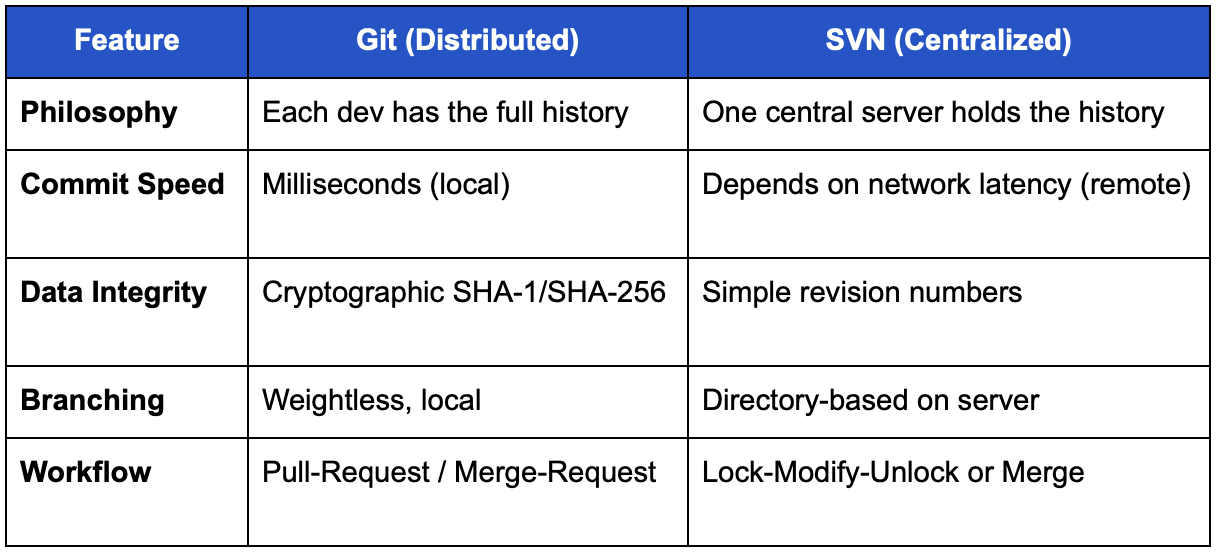
For companies struggling with this transition, RhodeCode provides a unique bridge. Our platform allows you to run svn checkout commit update alongside Git workflows, providing a unified management layer for all your svn command examples and Git repositories.
How to Optimize Your Git Workflow for 2026?
To maximize efficiency in a modern development environment, follow these actionable steps:
- Standardize the git commands list: Use team-wide aliases for complex commands to reduce cognitive load.
- Implement Git Hooks: Automatically run tests or linting scripts during the git commit phase to ensure code quality.
- Leverage Sparse Checkout: For massive git enterprise monorepos, use sparse checkout to only download the directories you need, saving disk space and bandwidth.
- Transition to Git Cloud: Centralize your collaboration. Using a git cloud solution ensures that your metadata, code reviews, and permissions are backed up and accessible globally.
- Security First: Integrate secret-scanning tools that utilize git version control commands to prevent the accidental leakage of API keys or passwords.
RhodeCode: The Superior Choice for Enterprise Git Management
In the competitive landscape of version control, RhodeCode stands out by offering features that generic providers often overlook. While competitors focus on social coding, we focus on Enterprise Control and Security.
Our Unique Value Proposition (UVP)
- Unified Interface: We are the only platform that allows you to manage Git, Mercurial, and Subversion in one place. No more switching between tools for different legacy projects.
- Built for Privacy: Unlike many cloud-only providers, RhodeCode is designed for secure, on-premise, or private cloud deployments. Your code never leaves your control.
- Granular Permissions: We provide deep, inheritance-based permission sets that go far beyond "Read/Write" access.
- Compliance Ready: With integrated logging and auditing, RhodeCode helps your organization meet SOC2, HIPAA, and ISO standards effortlessly.
Whether you are looking for a robust git enterprise solution or a flexible way to manage your git cloud repositories, RhodeCode provides the stability and scalability required by modern software powerhouses.
FAQ
What are the most used git commands for beginners?
The basic git commands every beginner should know are git init, git add, git commit, git status, and git push. Mastering these five will allow you to contribute to almost any project.
How does the stash command in git work?
Think of git stash as a drawer where you can temporarily hide your current work. It’s useful when you need to switch branches quickly but aren't ready to commit your current changes. You can have multiple stashes and name them for clarity.
Why should I use the command line instead of a GUI?
The CLI is faster, consumes fewer resources, and is available in every environment (including remote servers where a GUI won't work). Furthermore, the CLI provides access to advanced git command examples that many GUIs do not support.
Is Git better than SVN for large teams?
Generally, yes. Git's distributed nature allows developers to work independently without being throttled by a central server. However, for teams handling massive binary assets (like game development), a hybrid approach or a platform like RhodeCode that supports both is often best.
How do I fix a "Merge Conflict"?
A merge conflict occurs when two people change the same line in a file. Git will mark the file as conflicted. You must open the file, choose which version to keep, remove the conflict markers (<<<<, ====, >>>>), and then run git add and git commit to finish the process.
Step up your version control game today.
Start your free trial with RhodeCode and experience the power of a truly enterprise-grade Git platform.